# Rapid Team Formation Method - Docker (The main part of the documentation comes from https://www.docker.com/)  --- ## Why containers ? - Isolate a process and its dependencies in an independant item : a container. - Manage and put some limits to the available resources (CPU, RAM, IO) --- ## Why Docker ?  --- ## Why Docker ?  --- ## Why Docker ?  --- ## What is Docker ? > Docker is an open-source project that automates the deployment of applications inside software containers. --- ## What is Docker ? > Docker is an open platform for developers and sysadmins to build, ship, and run distributed applications.  --- ## What is Docker ? > Docker containers wrap a piece of software in a complete filesystem that contains everything needed to run: code, runtime, system tools, system libraries – anything that can be installed on a server. This guarantees that the software will always run the same, regardless of its environment. 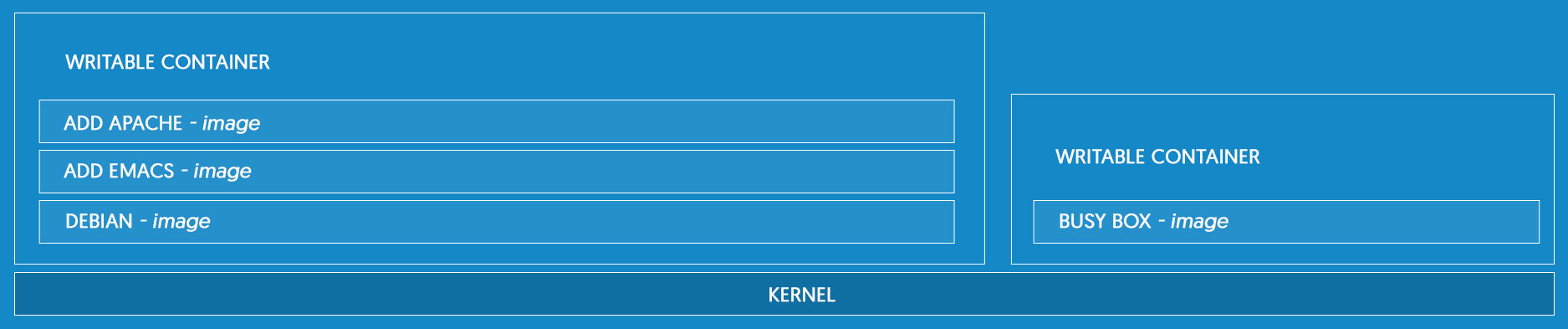 --- ## What is a container ? 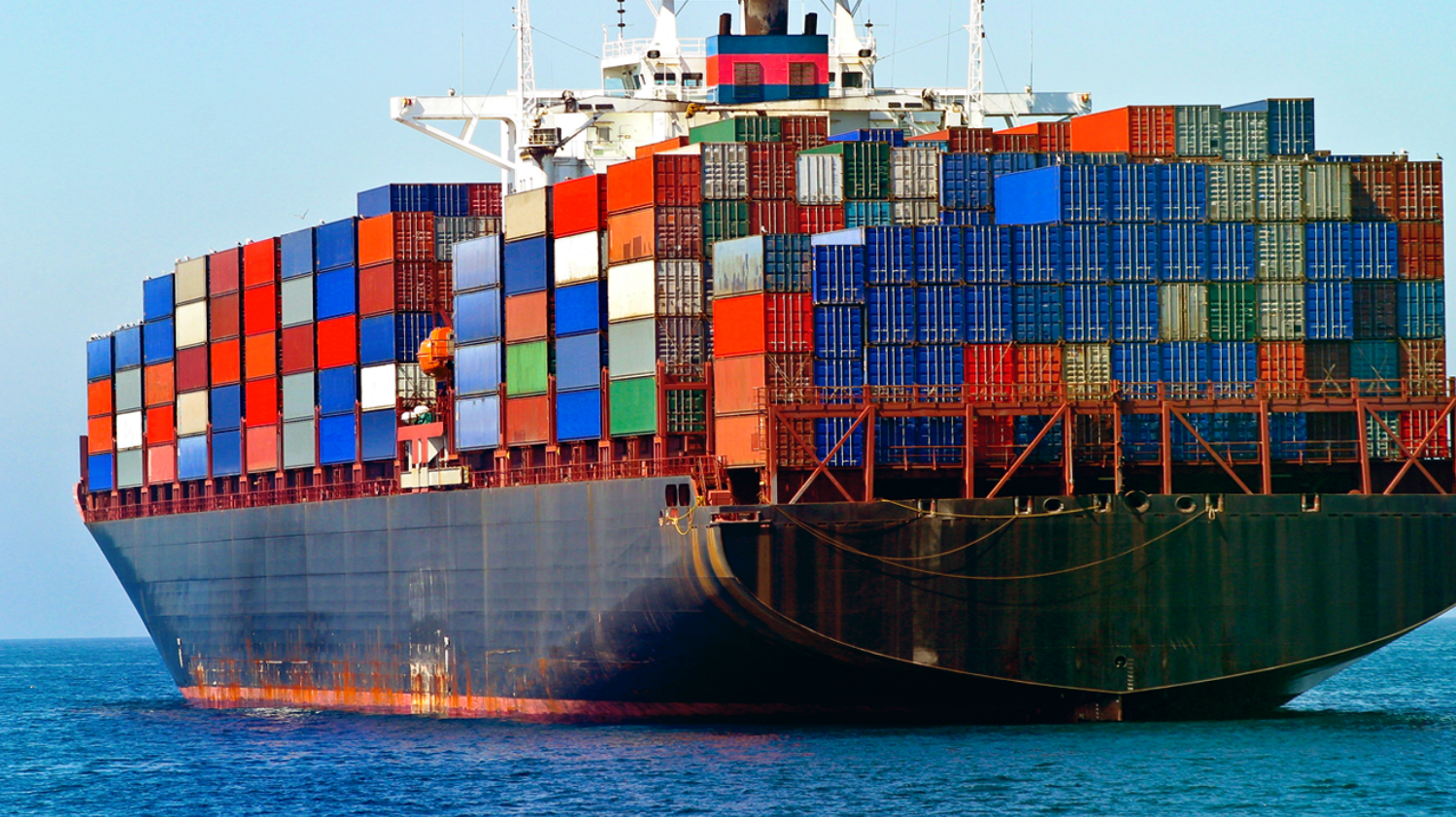 --- ### Lightweight > Containers running on a single machine share the same operating system kernel; they start instantly and use less RAM. Images are constructed from layered filesystems and share common files, making disk usage and image downloads much more efficient. --- ### Open > Docker containers are based on open standards, enabling containers to run on all major Linux distributions and on Microsoft Windows -- and on top of any infrastructure. --- ### Secure by default > Containers isolate applications from one another and the underlying infrastructure, while providing an added layer of protection for the application. --- ### Containers VS VM  --- #### Virtual machines > Virtual machines include the application, the necessary binaries and libraries, and an entire guest operating system -- all of which can amount to tens of GBs. 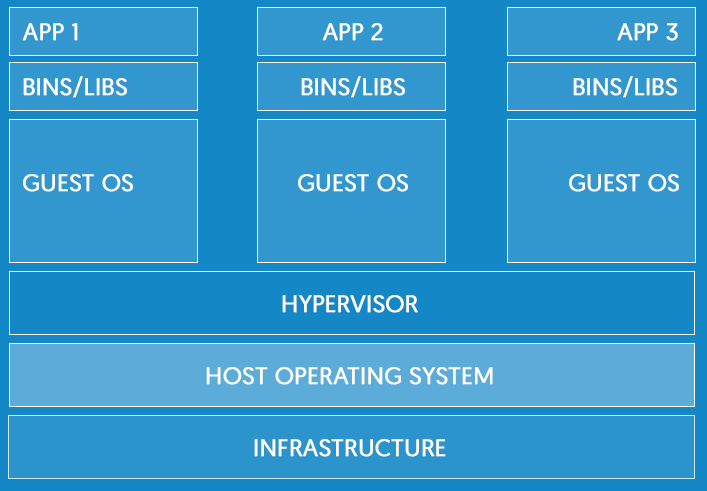 --- #### Containers > Containers include the application and all of its dependencies --but share the kernel with other containers, running as isolated processes in user space on the host operating system. Docker containers are not tied to any specific infrastructure: they run on any computer, on any infrastructure, and in any cloud.  --- #### Containers > «Saying a container is a light VM is like saying a folder is a light partition»  --- #### Isolation - Control and limit of the resources consumption (CPU, RAM, I/O) - Network isolation - Filesystem isolation - Users & groups isolation - processes isolation --- ### Docker accesses virtualisation features of Linux  --- ### Native Docker support on Windows  --- ### Docker for DevOps  --- ### Docker for DevOps 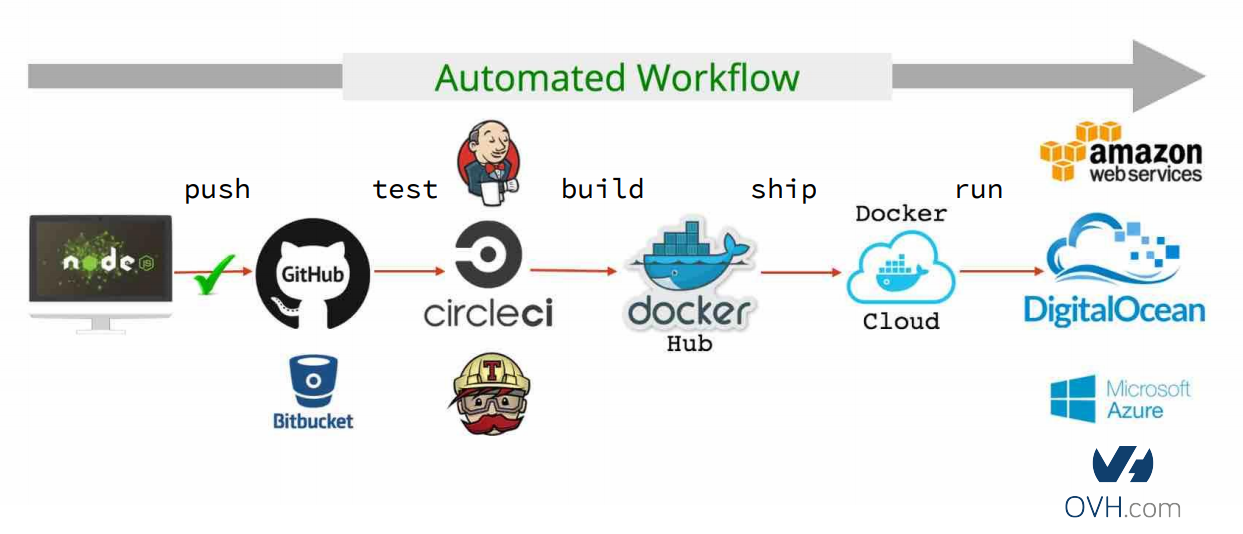 --- ### Essential Docker components 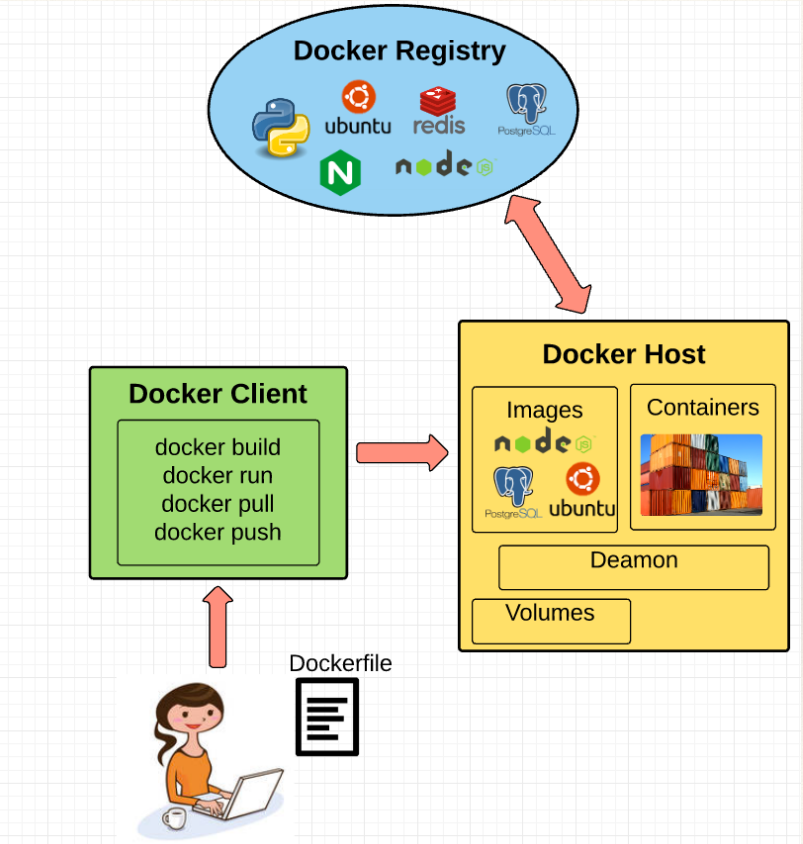 --- ## Usage --- ### Can I install Docker from commandline? Yes! from get.docker.com ``` curl -sSL https://get.docker.com/ | sh wget -qO- https://get.docker.com/ | sh ``` --- ### Hello World 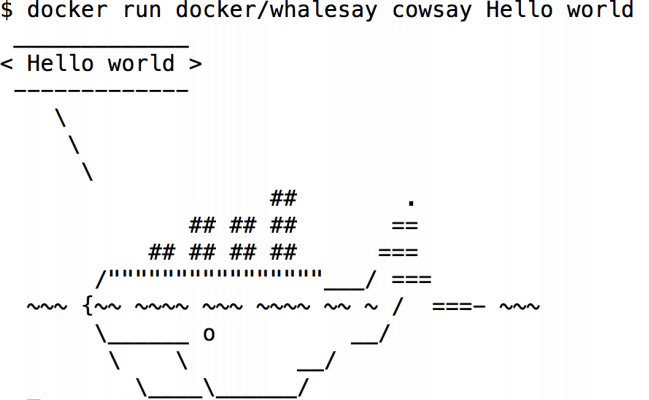 --- ### Using images > An image is a filesystem and parameters to use at runtime. It doesn’t have state and never changes. To get an image, two choices : - Pull it from the global https://hub.docker.com/ registry : `docker pull myimage` - Create and build it on your host with a `Dockerfile` file : `docker build -f ./myDockerfile -t myImageName` --- ### Building image ``` FROM gcc:latest COPY . /usr/src/myapp WORKDIR /usr/src/myapp RUN gcc -o hello hello.c CMD ["./hello"] ``` --- ### Building image ``` > docker build . -t "myapp:latest" Sending build context to Docker daemon 3.072 kB Step 1 : FROM gcc:latest ---> a0b516dc1799 // .. steps removed ... Step 6 : CMD ./hello ---> Using cache ---> f99e7f18fa42 Successfully built f99e7f18fa42 ``` --- ### Using containers > A container is a running instance of an image. To run a new container from an image : ```bash docker run --myOptions myImage myCommand ``` Example : ```bash docker run --rm myapp:latest ``` ```bash docker run --rm node npm version ``` ```bash docker run --rm -ti -u node -w /usr/src/app node:7.2 bash ``` ```bash docker run --rm -ti -u node -w /usr/src/app -p 3001:3000 node:7.2 node server.js ``` --- ## «Build. Ship. Run. Any app. Anywhere.» --- ### Build. A built image contains all the application and its dependencies. An image is immutable. Once the image built, it **cannot** be updated. --- ### Ship. The image is stored in a public or private registry. --- ### Run. A container can be created from an image at any time. --- ### Any app. - Compiled Go binary - MySQL server - bash - c++ - PHP - desktop application - ... --- ### Anywhere. Docker is available on : - Linux x64/ARM - Windows - MacOS ... - Serveur dédié - VM - RaspberryPi - ... --- ## Images, containers, and storage drivers 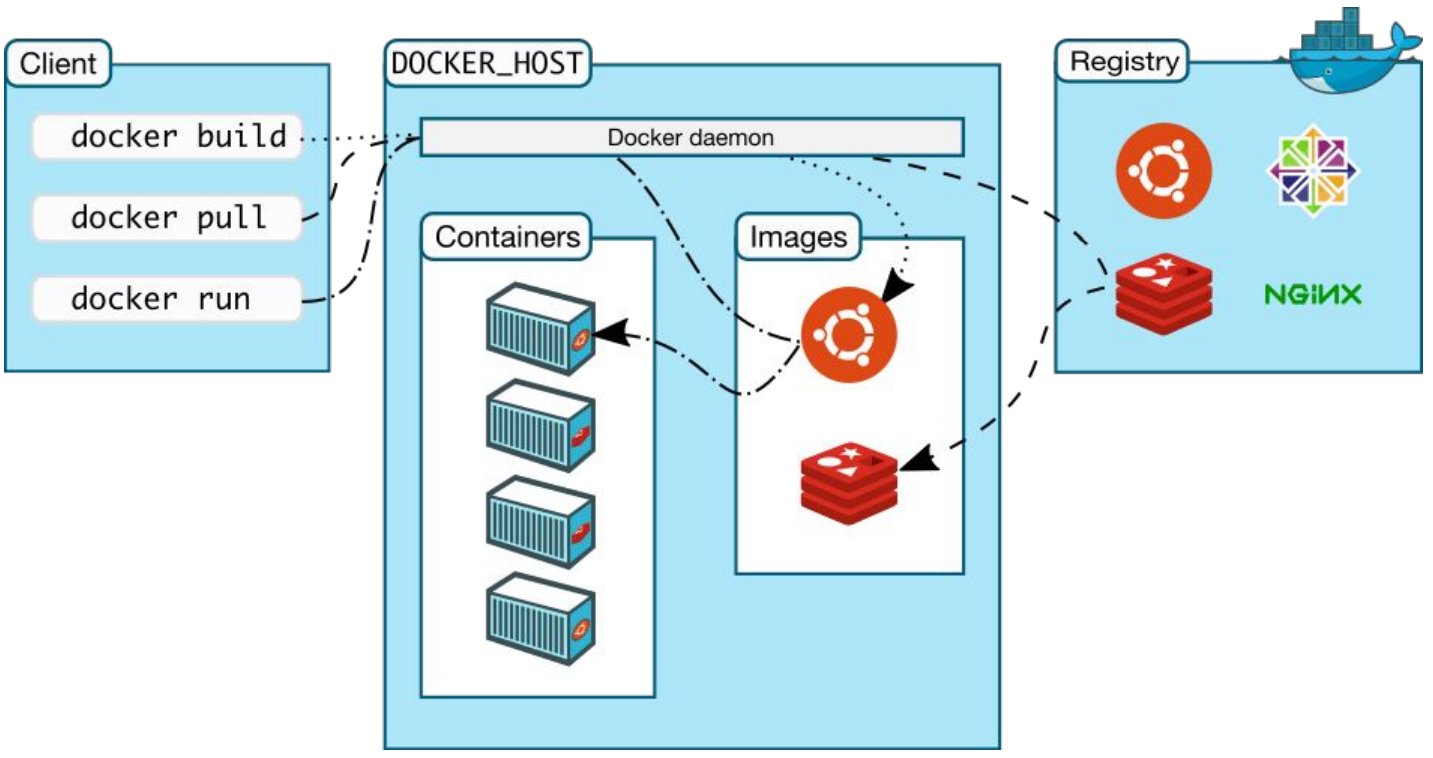 --- ### Image - A docker image is a stack of read-only layers in an union filesystem - Each layer contains a modification set relative to the previous layer - An image is read-only - An image is stateless - An image is used to create a container - An image can be the parent of another image --- #### Image  --- #### Dockerfile ``` FROM alpine:3.7 RUN apk add --update --no-cache ca-certificates \ && apk add --no-cache \ php7-fpm \ php7-apcu \ curl \ && rm -rf /var/cache/apk/* && rm -rf /tmp/* RUN addgroup www-data && adduser -h /var/www -D -g '' -G www-data www-data COPY ./bin/entrypoint /usr/bin/entrypoint COPY . /srv/ ENV APP_ENV prod ENTRYPOINT ["entrypoint"] CMD ["php-fpm7", "-F"] WORKDIR /srv EXPOSE 9001 ``` --- #### Image layers > Each Docker image references a list of read-only layers that represent filesystem differences.  > The Docker storage driver is responsible for stacking these layers and providing a single unified view. --- #### Image layers - Download ``` $ docker pull ubuntu:15.04 15.04: Pulling from library/ubuntu 47984b517ca9: Pull complete df6e891a3ea9: Pull complete e65155041eed: Pull complete c8be1ac8145a: Pull complete Digest: sha256:5e279a9df07990286cce22e1b0f5b0490629ca6d187698746ae5e28e604a640e Status: Downloaded newer image for ubuntu:15.04 ``` --- #### Dockerfile and layers - Each line of the Dockerfile will be a new layer - Layers are cached - Each layer can be a tagged image --- #### An image's layers ``` $ docker history nginx IMAGE CREATED CREATED BY SIZE ba6bed934df2 3 weeks ago /bin/sh -c #(nop) CMD ["nginx" "-g" "daemon 0 B <missing> 3 weeks ago /bin/sh -c #(nop) EXPOSE 443/tcp 80/tcp 0 B <missing> 3 weeks ago /bin/sh -c ln -sf /dev/stdout /var/log/nginx/ 22B <missing> 3 weeks ago /bin/sh -c apt-key adv --keyserver hkp://pgp. 58.38 MB <missing> 3 weeks ago /bin/sh -c #(nop) ENV NGINX_VERSION=1.11.4-1 0 B <missing> 3 weeks ago /bin/sh -c #(nop) MAINTAINER NGINX Docker Ma 0 B <missing> 3 weeks ago /bin/sh -c #(nop) CMD ["/bin/bash"] 0 B <missing> 3 weeks ago /bin/sh -c #(nop) ADD file:c6c23585ab140b0b32 123 MB ``` --- ### Container - It's the creation of a temporary writable layer on the top of an image - The writable layer contains all the user's modifications - The container is created with the run command --- #### Container  --- #### Container docker build # => image docker push docker pull docker run <image-name> # => container  --- #### Container !== VM ``` $ time docker run alpine echo "Running in a container!" Unable to find image 'alpine:latest' locally latest: Pulling from library/alpine c0cb142e4345: Pull complete Digest: sha256:ca7b185775966003d38ccbd9bba822fb570766e4bb69292ac23490f36f8a742e Status: Downloaded newer image for alpine:latest Running in a container! real 0m2.874s user 0m0.000s sys 0m0.040s $ time docker run alpine echo "Running in a container!" Running in a container! real 0m0.241s user 0m0.000s sys 0m0.024s ``` --- #### Container layer > When you create a new container, you add a new, thin, writable layer on top of the underlying stack. This layer is often called the “container layer”. All changes made to the running container - such as writing new files, modifying existing files, and deleting files - are written to this thin writable container layer.  > Docker 1.10 introduced a new content addressable storage model. Previously, image and layer data was referenced and stored using a randomly generated UUID. In the new model this is replaced by a secure content hash. --- ## Digging into Docker layers **TLDR;** Layers of a Docker image are essentially just files generated from running some command. You can view the contents of each layer on the Docker host at */var/lib/docker/aufs/diff*. Layers are neat because they can be re-used by multiple images saving disk space and reducing time to build images while maintaining their integrity. --- ### Dockerfile to layers ``` FROM node:latest # Create app directory RUN mkdir -p /usr/src/app WORKDIR /usr/src/app # Install app dependencies COPY package.json /usr/src/app/ RUN npm install # Bundle app source COPY . /usr/src/app EXPOSE 8080 CMD [ "npm", "start" ] ``` Each step corresponds to a command run in the Dockerfile. And each layer is made up of the file generated from running that command. --- #### Dockerfile to layers ``` $ docker build -t expressweb . Step 1 : FROM node:argon argon: Pulling from library/node... ... Status: Downloaded newer image for node:argon ---> 530c750a346e Step 2 : RUN mkdir -p /usr/src/app ---> Running in 5090fde23e44 ---> 7184cc184ef8 Removing intermediate container 5090fde23e44 Step 3 : WORKDIR /usr/src/app ---> Running in 2987746b5fba ---> 86c81d89b023 Removing intermediate container 2987746b5fba Step 4 : COPY package.json /usr/src/app/ ---> 334d93a151ee Removing intermediate container a678c817e467 Step 5 : RUN npm install ---> Running in 31ee9721cccb ---> ecf7275feff3 Removing intermediate container 31ee9721cccb Step 6 : COPY . /usr/src/app ---> 995a21532fce Removing intermediate container a3b7591bf46d Step 7 : EXPOSE 8080 ---> Running in fddb8afb98d7 ---> e9539311a23e Removing intermediate container fddb8afb98d7 Step 8 : CMD npm start ---> Running in a262fd016da6 ---> fdd93d9c2c60 Removing intermediate container a262fd016da6 Successfully built fdd93d9c2c60 ``` --- #### Dockerfile to layers ``` docker history <image> $ docker history expressweb IMAGE CREATED CREATED BY SIZE fdd93d9c2c60 2 days ago /bin/sh -c CMD ["npm" "start"] 0 B e9539311a23e 2 days ago /bin/sh -c EXPOSE 8080/tcp 0 B 995a21532fce 2 days ago /bin/sh -c COPY dir:50ab47bff7 760 B ecf7275feff3 2 days ago /bin/sh -c npm install 3.439 MB 334d93a151ee 2 days ago /bin/sh -c COPY file:551095e67 265 B 86c81d89b023 2 days ago /bin/sh -c WORKDIR /usr/src/app 0 B 7184cc184ef8 2 days ago /bin/sh -c mkdir -p /usr/src/app 0 B 530c750a346e 2 days ago /bin/sh -c CMD ["node"] 0 B ``` --- #### Docker run to layers ``` docker run expressweb ``` [Image layers](img-docker/docker-image-layers.png) --- #### Layers storage The */var/lib/docker/aufs* directory points to three other directories: *diff*, *layers* and *mnt*. - Image layers and their contents are stored in the *diff* directory. - How image layers are stacked is in the *layers* directory. - Running containers are mounted below the *mnt* directory --- ### Storage drivers > The Docker storage driver is responsible for enabling and managing both the image layers and the writable container layer. How a storage driver accomplishes these can vary between drivers. Two key technologies behind Docker image and container management are stackable image layers and copy-on-write (CoW).  --- ### Union filesystem Union Mount is a way of combining numerous directories into one directory that looks like it contains the content from all the them. --- ### The copy-on-write strategy > In this strategy, system processes that need the same data share the same instance of that data rather than having their own copy. At some point, if one process needs to modify or write to the data, only then does the operating system make a copy of the data for that process to use. Only the process that needs to write has access to the data copy. All the other processes continue to use the original data. - Search through the image layers for the file to update. The process starts at the top, newest layer and works down to the base layer one layer at a time. - Perform a “copy-up” operation on the first copy of the file that is found. A “copy up” copies the file up to the container’s own thin writable layer. - Modify the copy of the file in container’s thin writable layer. --- ### AUFS > AUFS (Another Union FileSystem) was the first storage driver in use with Docker. AUFS is a unification filesystem. This means that it takes multiple directories on a single Linux host, stacks them on top of each other, and provides a single unified view. To achieve this, AUFS uses a union mount.  --- ### AUFS - Details > AUFS also supports the copy-on-write technology. - When a container do a write operation on a file, the file is fully copied in the container layer - When a file is deleted, a `without file` is created in the container layer - Renaming directories is not fully supported => the app should handle EXDEV (“cross-device link not permitted”) and fall back to a “copy and unlink” strategy. - Storage path : `/var/lib/docker/aufs/diff/` for images and containers layers, `/var/lib/docker/aufs/layers/` for layers metadata, `/var/lib/docker/aufs/mnt/<container-id>` for union mount point, and `/var/lib/docker/containers/<container-id>` for containers metadata and config files - AUFS Branches — each Docker image layer is called a AUFS branch. --- ### Other storage drivers - OverlayFS - Device mapper - Btrfs - Zfs - ... > // TODO with love :) --- ## More about Docker --- ### Volumes > When a container is deleted, any data written to the container that is not stored in a data volume is deleted along with the container. > A data volume is a directory or file in the Docker host’s filesystem that is mounted directly into a container. > Reads and writes to data volumes bypass the storage driver and operate at native host speeds. You can mount any number of data volumes into a container. > Multiple containers can also share one or more data volumes. --- ### docker-compose See the demo ;-) --- ### Network See the demo ;-) --- ### Access to the containers on your host - By container IP - By exposed port ... so convenient ... But there are some other ways ! --- #### Auto update the hosts file https://github.com/iamluc/docker-hostmanager --- #### Use a local DNS server https://github.com/jderusse/docker-dns-gen --- #### Use a docker proxy https://github.com/containous/traefik --- ### Users and containers How to use the local user UUID and GUID in the container ? By default, all the commands run in a container are made by the root user. If we set the `USER` value in the Dockerfile, how to do something as root ? --- #### Users and containers /usr/bin/entrypoint ``` #!/usr/bin/env sh set -e umask ${ENTRYPOINT_UMASK:-022} : ${WWW_DATA_UID:=`stat -c %u /srv`} : ${WWW_DATA_GUID:=`stat -c %g /srv`} if [ "$WWW_DATA_UID" -ne "0" -a "`id -u www-data`" -ne "$WWW_DATA_UID" ]; then usermod -u ${WWW_DATA_UID} www-data || true groupmod -g ${WWW_DATA_GUID} www-data || true fi if [ "${ENTRYPOINT_USER:-root}" == "$(whoami)" ]; then exec "$@" else echo "Caution : executing 'su-exec \"${ENTRYPOINT_USER:-root}\" \"$@\"' with $(whoami) user witout signal handler" su-exec "${ENTRYPOINT_USER:-root}" "$@" fi ``` --- ### Docker workbench for security ``` docker run -it --net host --pid host --cap-add audit_control \ -v /var/lib:/var/lib \ -v /var/run/docker.sock:/var/run/docker.sock \ -v /usr/lib/systemd:/usr/lib/systemd \ -v /etc:/etc --label docker_bench_security \ docker/docker-bench-security #OR git clone https://github.com/docker/docker-bench-security.git cd docker-bench-security sh docker-bench-security.sh ``` > Use the free Docker Workbench For Security (https://github.com/docker/docker-bench-security) to check for violations of security best practices --- ### Docker workbench for security ``` $ sh docker-bench-security.sh [WARN] Some tests might require root to run [INFO] 1 - Host Configuration [WARN] 1.1 - Create a separate partition for containers [PASS] 1.2 - Use an updated Linux Kernel [WARN] 1.4 - Remove all non-essential services from the host - Network [WARN] * Host listening on: 7 ports [PASS] 1.5 - Keep Docker up to date [INFO] * Using 1.12.1 which is current as of 2016-08-16 [INFO] * Check with your operating system vendor for support and security maintenance for docker [INFO] 1.6 - Only allow trusted users to control Docker daemon [WARN] 1.7 - Failed to inspect: auditctl command not found. [INFO] 1.8 - Audit Docker files and directories - /var/lib/docker [INFO] * Directory not found [INFO] 1.9 - Audit Docker files and directories - /etc/docker [INFO] * Directory not found ... [INFO] 2 - Docker Daemon Configuration [WARN] 2.1 - Restrict network traffic between containers [PASS] 2.2 - Set the logging level [PASS] 2.3 - Allow Docker to make changes to iptables [PASS] 2.4 - Do not use insecure registries [WARN] 2.5 - Do not use the aufs storage driver [INFO] 2.6 - Configure TLS authentication for Docker daemon [INFO] * Docker daemon not listening on TCP [INFO] 2.7 - Set default ulimit as appropriate [INFO] * Default ulimit doesn't appear to be set [WARN] 2.8 - Enable user namespace support [PASS] 2.9 - Confirm default cgroup usage [PASS] 2.10 - Do not change base device size until needed [WARN] 2.11 - Use authorization plugin [WARN] 2.12 - Configure centralized and remote logging [WARN] 2.13 - Disable operations on legacy registry (v1) ``` --- ### And the bonus ``` docker run --rm -ti -v /:/host alpine:latest chroot /host ``` --- # Resources - `Docker by Example`, by codeops.tech - `Docker for Java Developers` (Java & Swarm), by Arun Gupta, Couchbase